Start with the experience, not the layout
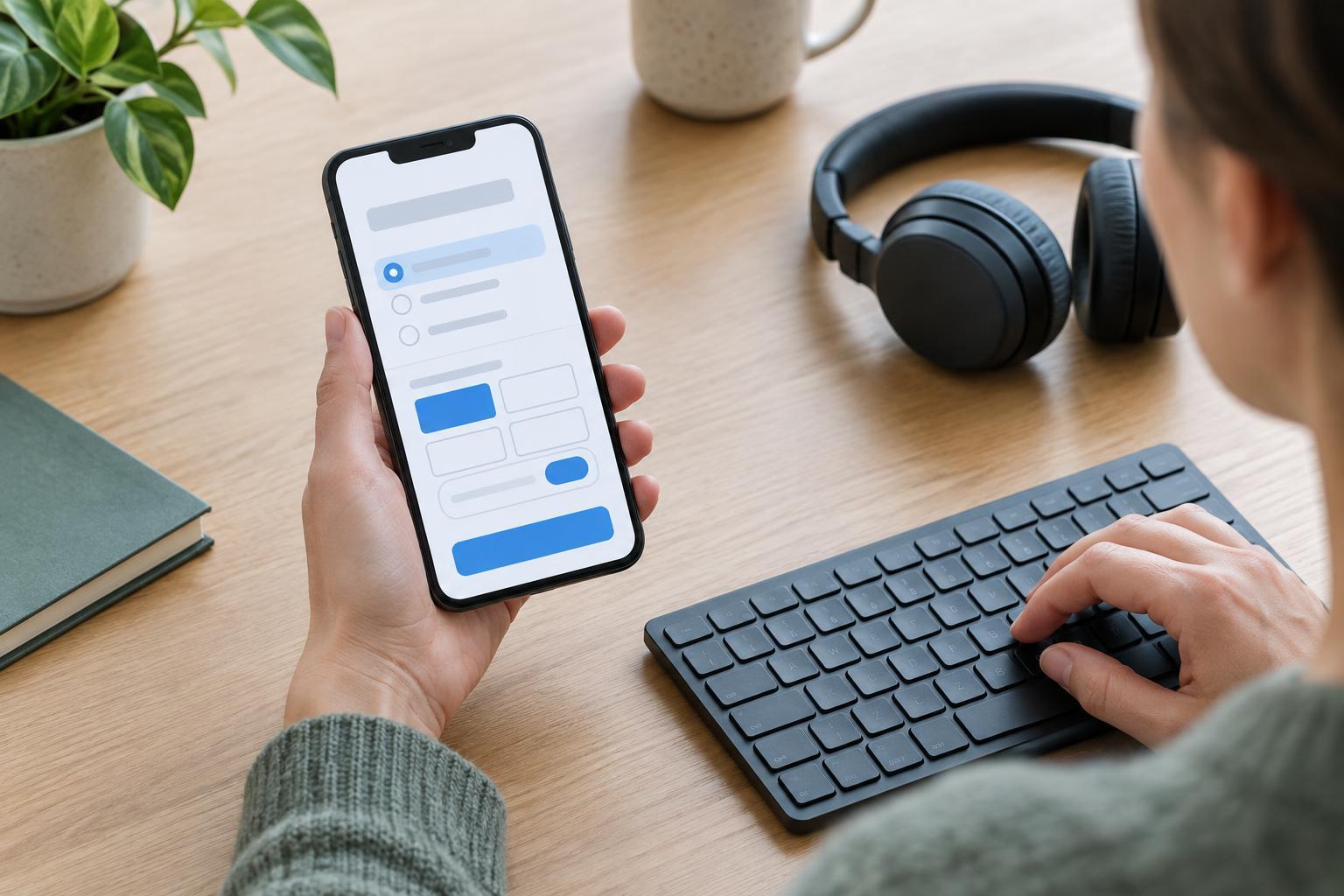
A survey that looks tidy on a desktop may feel very different on a phone. Respondents may need to scroll past long instructions, zoom to read an answer choice, or move between fields while holding the device in one hand. People using a keyboard, screen reader, or voice control may encounter a different set of obstacles. Good design begins by asking whether each person can understand the question, find the available answers, and move forward without guessing.
Keep the survey focused on decisions you intend to make. If a question will not inform an analysis or action, consider removing it. A shorter survey generally gives you fewer opportunities to introduce confusing wording or difficult interactions. Before building the form, write down what each question is meant to measure. This makes it easier to choose a simple response format instead of adding a complex control because it looks compact.
Write questions that fit a small screen
Use a clear question as the visible label for each response field. Put essential context close to the question rather than hiding it in an introduction that respondents may have to scroll back to find. Short wording helps, but brevity should not come at the expense of meaning: “How often?” is less useful than “How often have you used this service in the past month?” Define terms that different respondents might interpret differently.
Avoid grids with many rows and columns when a straightforward sequence of questions will do. A grid can require horizontal scrolling or make it hard to tell which answer belongs to which row. Likewise, long lists of similar choices can be difficult to scan. Group options logically, keep their wording distinct, and use an “Other” field only when an answer outside the list would be useful to capture. If respondents may reasonably have no answer, offer an appropriate option rather than forcing a guess.
Make the form understandable without sight or touch
Accessibility depends on both the questions and how the survey tool presents them. Each field needs a programmatically associated label, and related choices should be presented as a group with a clear group question. Do not rely on placeholder text as the only label; it can disappear when someone starts typing. Instructions such as “Select all that apply” should be available where respondents encounter the choices, including when using a screen reader.
Make sure the survey can be completed with a keyboard alone. The focus should move in a sensible order, remain visible, and never become trapped in a menu or pop-up. Buttons should have descriptive names such as “Continue to next section” rather than depending on an icon alone. Color can support meaning, but it should not be the only way to identify a required field or an error. When a response needs correction, explain the problem in words and connect the message to the relevant field.
Images, scales, and interactive controls deserve extra care. Provide text alternatives for images that contain information needed to answer. For rating scales, state what the endpoints mean and check that each option can be identified and selected with assistive technology. A plain set of labeled choices may work better than a visually polished slider.
Reduce avoidable friction during completion
On a phone, readable text and comfortably spaced controls matter more than fitting everything onto one screen. Let content adapt to narrow widths rather than requiring horizontal scrolling. Keep navigation consistent, and make it possible to review an earlier answer when the survey flow allows it. If a question is optional, say so clearly; if it is required, give respondents enough information to answer without inventing a response.
Use skip logic carefully. Showing only relevant questions can reduce effort, but unexpected jumps may leave people unsure whether they missed something. Make transitions understandable, especially when a prior answer ends the survey. Before adding a progress indicator, check that it reflects the path respondents actually see; a misleading percentage can be less helpful than a simple statement of the remaining sections.
Test the survey as a respondent would
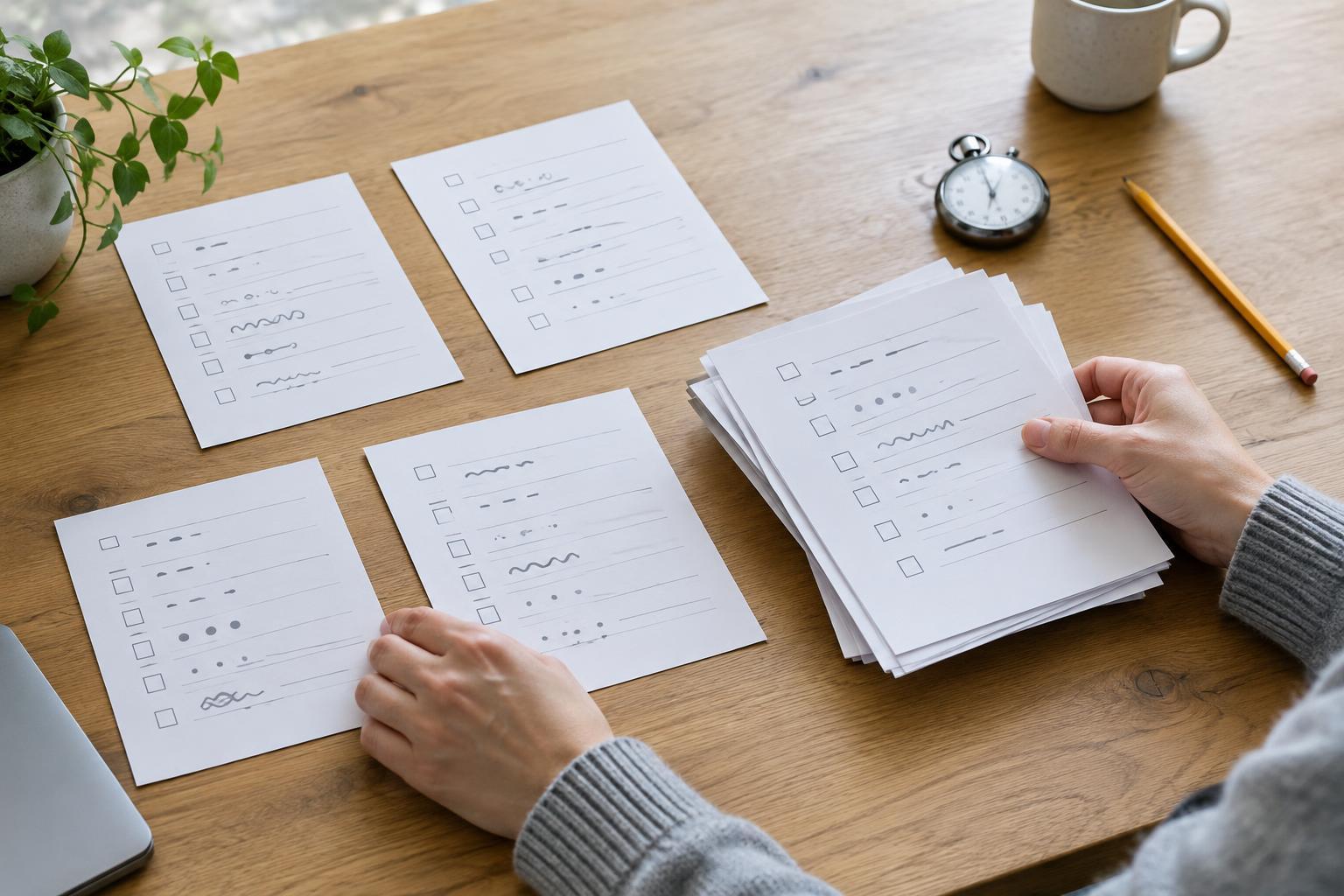
Preview the finished survey on a narrow phone screen and at increased text size. Complete it using only a keyboard, and, where possible, try a screen reader or ask people familiar with assistive technology to test it. Check whether labels make sense when read out of visual context, whether errors are easy to locate, and whether the final submission is clearly confirmed. Test the actual survey link and flow, not just isolated questions in an editor.
A small pilot can reveal unclear wording and awkward paths before the survey reaches a wider audience. Ask testers where they hesitated, not only whether they could finish. Then review missing answers and early exits cautiously: they may suggest friction, but they do not prove its cause. Improving access is an ongoing design practice, and the goal is a survey that gives more people a fair opportunity to provide the answers you need.